
Adobe Acrobat Tip of the Week: Unlock the Power of OCR (Optical Character Recognition)
Ever tried copying text from a scanned document, only to realize it behaves like an image? Say hello to OCR — one of Adobe Acrobat’s most underrated but powerful features.
Whether you’re digitizing old paperwork or need to extract text from a photo of a document, Acrobat’s OCR tool transforms scanned images into searchable, editable text in just a few clicks.
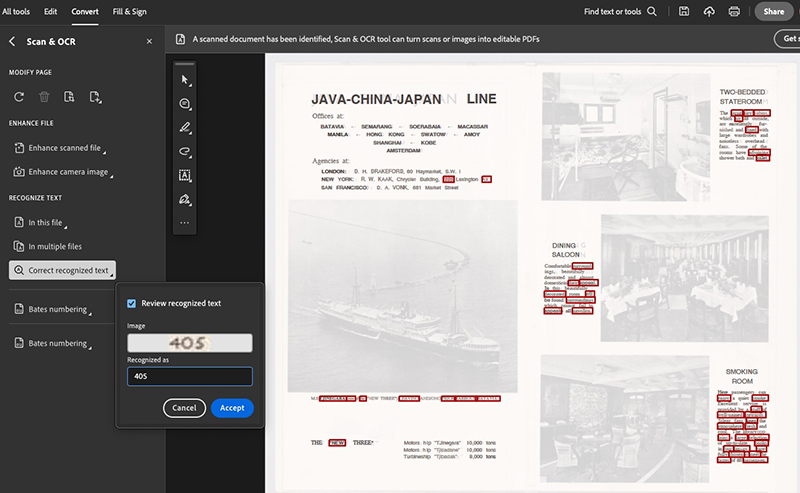
Step-by-Step: How to Use OCR in Adobe Acrobat
- Open your scanned PDF in Adobe Acrobat.
- Go to “Scan & OCR” in the right-hand pane.
(If you don’t see it, click “More Tools” > “Scan & OCR” to add it.) - Click “Recognize Text” > “In This File”.
- Choose your settings (language, pages, etc.) and click “Recognize Text.”
- Acrobat will process the document — you’ll now be able to select, copy, and edit the text.
Use Cases:
- Digitizing handwritten forms or scanned contracts
- Making old documents searchable for internal databases
- Extracting text from image-based PDFs (like receipts or faxes)
- Translating scanned documents using translation tools
Pro Tip:
After running OCR, use “Edit PDF” to fine-tune the text, correct formatting, or even replace images. Perfect for cleaning up documents before sharing or archiving!