
Harnessing Adobe Firefly for Creative Cloud Workflows
Unlock generative AI in Photoshop, Illustrator & InDesign
Introduction
Generative AI is transforming how creatives imagine, design and deliver. With Adobe Firefly now integrated into the Creative Cloud ecosystem, designers have a powerful new tool that works alongside your familiar apps — Adobe Photoshop, Adobe Illustrator and Adobe InDesign. In this post, we’ll explore what Firefly is, how it fits into existing workflows, and practical steps to get started today.
What is Adobe Firefly?
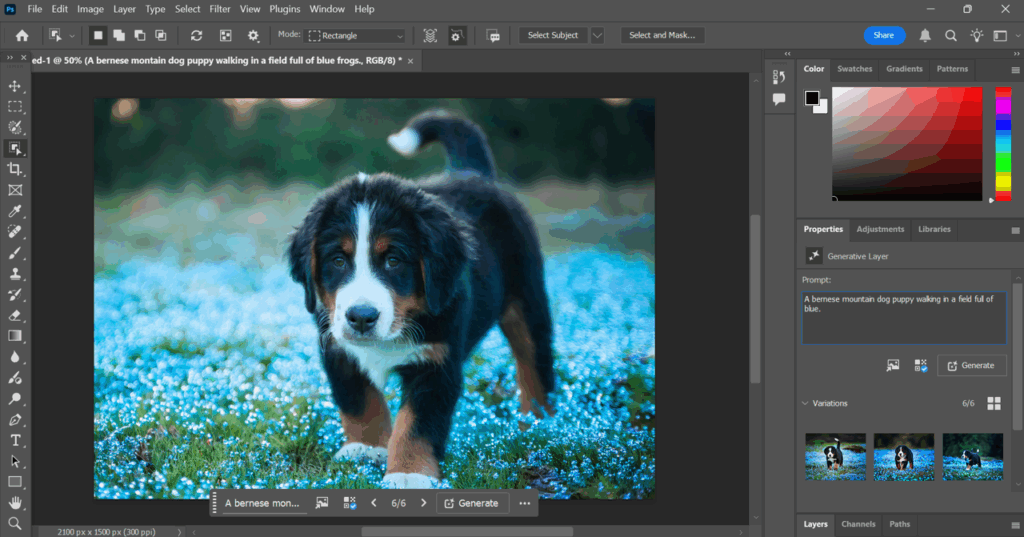
At its core, Adobe Firefly is a generative-AI model specifically designed for creative content production. Unlike generic AI image generators, Firefly is built with Adobe’s assets, licensing, and workflow integration in mind. It lets you generate images, patterns, vector assets, textures, and more via text prompts — and then refine them inside Photoshop, Illustrator or InDesign.
Here are a few key features:
- Text-to-image generation with creative control (style, mood, color)
- Pattern and texture generation for backgrounds or fills
- Vector conversion of generative assets and seamless placement in Illustrator
- Library sync across Creative Cloud so generative assets move smoothly across apps
Why it matters for creatives
Generative AI isn’t meant to replace your design skills — it augments them. Here’s what it delivers:
- Rapid ideation: generate concept visuals in minutes instead of hours
- Enhanced workflows: move from prompt → export → refine, bridging apps
- Creative expansion: unlock styles, variations, or visual assets you might not have sketched out manually
- Consistency & reuse: Firefly assets can live in CC Libraries, reused across projects
Workflow breakdown: From prompt to production
Let’s walk through a typical workflow using Firefly + the Creative Cloud apps.
1. Generate in Firefly
Begin in the Firefly interface (web or within Creative Cloud). Use a prompt like:
“Dream-like forest background with soft pastel light rays, cinematic, 4000×3000 px”
Experiment with style and variation options until you get a compelling base image.
2. Import into Photoshop
Take the generated image into Photoshop. Here you can:
- Convert to Smart Object for non-destructive edits
- Use layers, masking, retouching, color adjustment
- Add typography, overlays or additional effects
3. Use Illustrator for vector assets
If you generated a pattern, icon or silhouette, bring that into Illustrator. You might:
- Trace or convert the image to vector
- Use pathfinder, clipping masks, gradients, color swatches
- Create a reusable symbol or graphic for branding
4. Layout in InDesign for final output
Finally, move your assets into InDesign for print or digital layout. Steps include:
- Place linked Firefly/Photoshop/Illustrator files
- Set up master pages, styles, grids and libraries
- Export for print (PDF/X-4) or web (interactive PDF, EPUB)
5. Maintain your asset library
Use the Creative Cloud Libraries panel to store Firefly assets. Organize by project, asset-type or usage. This helps maintain versioning, reuse and consistency across multiple designs.
Best Practices & Pro Tips
- Prompt log: Keep a running list of prompts you used, with what worked/what didn’t — small modifications often yield big gains.
- Non-destructive edits: Use Smart Objects and linked files to preserve the original Firefly outputs.
- Maintain resolution: Even if you generate at 3000×2000 px, if it’s going into print, check you meet output-size/resolution requirements.
- Color management: Firefly output may default to sRGB. If you’re designing for CMYK output, convert and check color shifts.
- Ethics & licensing: Be aware of how generative assets are used in commercial work; review Adobe’s licensing terms and ensure any client usage is compliant.
- Iterate, don’t settle: The first Firefly output is a starting point — treat it like a sketch, and refine it in your familiar apps.
Use Cases
- Marketing campaign assets: Generate hero visuals quickly and then tweak for multiple channels (social, print, web).
- Branding & iconography: Use Firefly to brainstorm characters, patterns or logo variants; polish in Illustrator.
- Editorial layouts: For a magazine spread or e-zine, generate unique backgrounds or textures and deploy in InDesign.
- Presentation design: Create high-impact backgrounds or visual elements and integrate efficiently across Photoshop and Illustrator.