
Photoshop Tip of the Week: Use “Content-Aware Fill” to Magically Remove Unwanted Objects
What Is Content-Aware Fill?
Content-Aware Fill is a powerful Photoshop feature that analyzes your image and intelligently fills in the selected area by matching the surrounding pixels. It’s like Photoshop’s version of a disappearing act — but with stunningly realistic results.
How to Use It:
- Open Your Image in Photoshop
- Use the Lasso Tool (L) or Object Selection Tool (W) to draw around the object you want to remove.
- Go to the top menu and click Edit > Content-Aware Fill.
- A new workspace will open. On the left, you’ll see the sampling area (the green overlay) and a preview on the right.
- Photoshop will automatically fill the selection — tweak the sampling area or output settings if needed.
- Click OK and voila! The object disappears and blends beautifully with the background.

| Original Image | After Content Aware Fill |
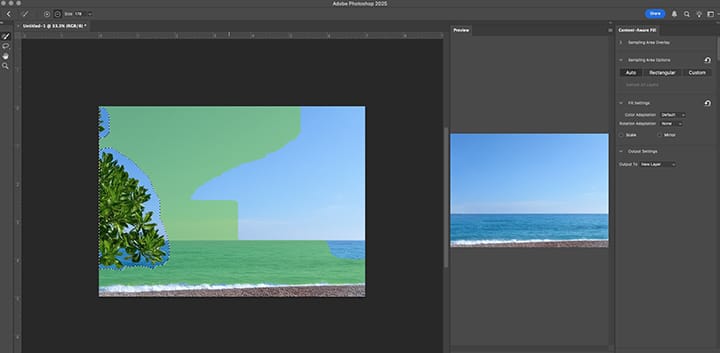
When to Use It:
- Removing distractions in portraits (like background clutter)
- Fixing blemishes in product photos
- Cleaning up scanned artwork
- Creating more negative space in design work
Pro Tip:
For better results, try cleaning up leftover edges with the Clone Stamp Tool (S) or the Spot Healing Brush (J) after the fill. A little touch-up goes a long way!