
InDesign Tip of the Week: Master Paragraph Styles for Consistent Layouts
If you’ve ever struggled with keeping your text formatting consistent in InDesign, there’s an easier way. Instead of manually adjusting fonts, sizes, and spacing, use Paragraph Styles to instantly apply and update formatting across your entire document.
How to Use Paragraph Styles
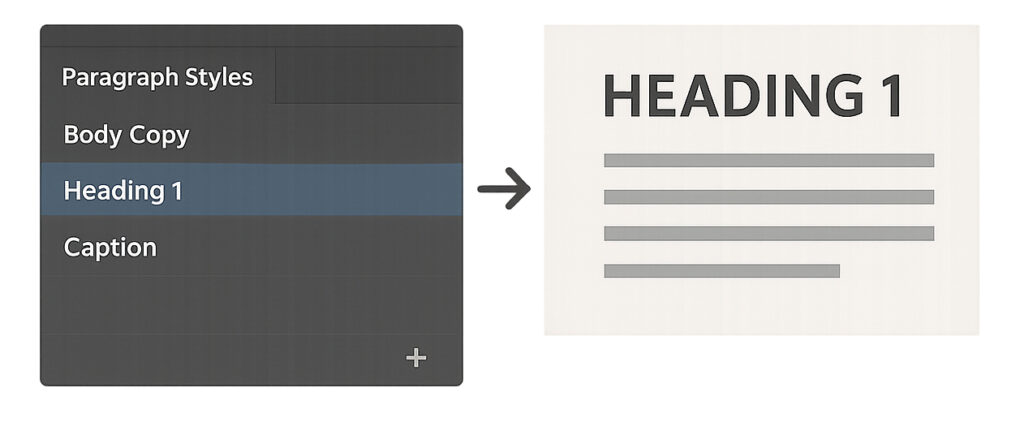
- Open the Paragraph Styles panel – Go to Window > Styles > Paragraph Styles.
- Format your text – Apply the font, size, color, and spacing you want for your heading, body text, or captions.
- Create a new style – With your text selected, click the New Style button in the panel. Name it something descriptive like “Heading 1” or “Body Copy.”
- Apply consistently – Select any paragraph and click the style name in the panel. Your formatting is applied instantly.
- Edit once, update everywhere – If you change the style later, every paragraph using it will update automatically.
Pro Tip
Use Nested Styles within Paragraph Styles to automate character-level formatting—like making the first few words bold or styling bullet points automatically. This saves hours on long documents like catalogs, books, or reports.
When to Use It
- Designing multi-page documents like magazines or brochures
- Keeping branding consistent across proposals or presentations
- Speeding up text updates in templates or large-scale projects
- Reducing errors when collaborating with a team