
Excel Tip: Master Flash Fill for Lightning-Fast Data Cleanup
Do you ever find yourself manually typing or copying data into patterns—like splitting full names into first and last columns, formatting phone numbers consistently, or extracting dates from messy text strings? Excel’s Flash Fill is a hidden gem that automates this tedious work in seconds, often with zero formulas required. It’s especially useful for business analysts, accountants, project managers, and anyone wrangling imported data from CSVs, reports, or databases.
Introduced years ago but improved in recent Microsoft 365 updates, Flash Fill recognizes patterns from your examples and fills the rest intelligently—saving hours on repetitive tasks.
How to Use Flash Fill (Quick Steps)
Prepare your data
Start with your source column (e.g., Column A has “John Smith” in each row).
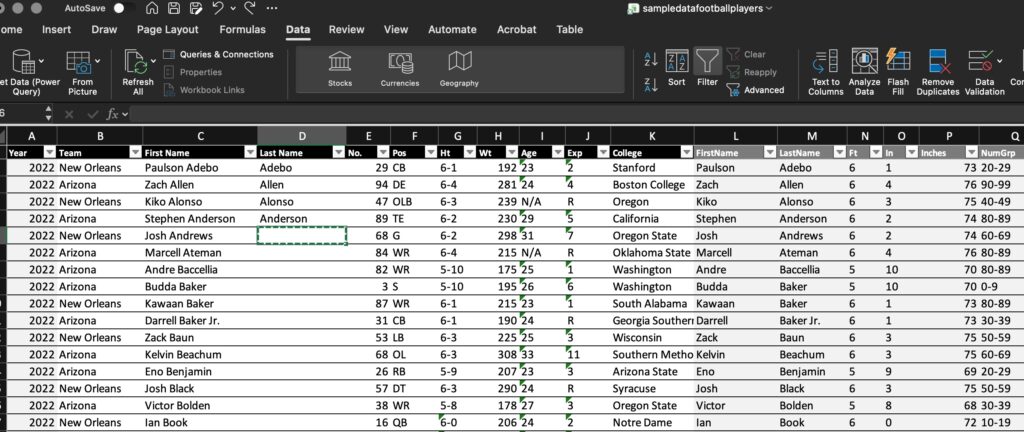
Give Excel an example
In the adjacent column (e.g., Column B for first names), type the desired result for the first row: “John”. Press Enter.
Trigger Flash Fill
Start typing the second example (e.g., type “Jane” in the next row).
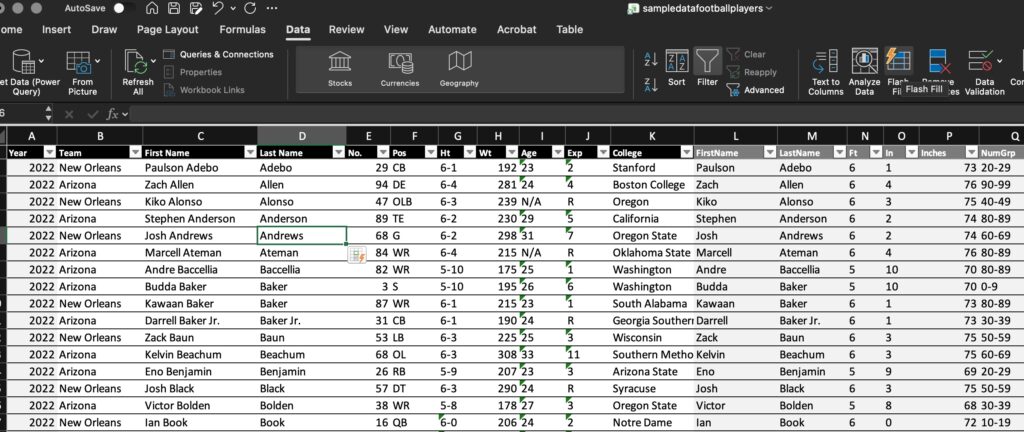
Excel often auto-suggests the pattern in gray preview text for the remaining rows.
Press Ctrl + E (the official shortcut) to accept and fill the entire column instantly.
Alternatively, go to Data tab > Flash Fill, or let Excel prompt you with a small AutoFill Options icon after typing a couple.
Examples of what Flash Fill excels at:
Split “John Smith – Atlanta, GA” into separate columns for Name, City, State.
Convert “2026-02-03” to “February 3, 2026” or custom formats.
Extract email domains from full addresses (e.g., turn “[email protected]” into “ledet.com”).
Clean up inconsistent phone numbers: turn “(404) 555-1234” and “4045551234” into a uniform style.
Pro Tips for Best Results
Provide 2-3 examples if the first doesn’t trigger the preview—Excel learns faster.
Use it right after pasting data; it works best on contiguous columns.
If Flash Fill doesn’t appear, ensure it’s enabled: File > Options > Advanced > Enable fill handle and cell drag-and-drop (it’s usually on by default).
Combine with Text to Columns for more complex splits, but Flash Fill is quicker for pattern-based tasks.
In Microsoft 365, Flash Fill now handles more complex AI-like inferences, such as recognizing abbreviations or international formats.
This simple feature can cut data prep time dramatically—perfect for reports, dashboards, or cleaning client lists before analysis.
Want to go deeper into Excel productivity hacks, advanced formulas, PivotTables, Power Query, and more? Ledet Training offers hands-on Microsoft Excel courses (from beginner to advanced levels), available live online, in our classrooms or customized for your team onsite at your location. Check our schedule at www.ledet.com/schedule/category/microsoft-excel/ or explore our full catalog.